
Invite your first friend
When you first open the app, the empty yard asks Who would you like to play with? and shows three moving companion choices. Click one and it comes into the yard and waves. See other pets opens the Invite tab with every pet on this computer.
Bundled companions since 0.1.0
On first start the Invite tab has PlayPets starter pets: Daisy the explorer, Clover the kitten gardener and Pip the cheerful puppy in a blue-flower jacket. Clover is the app's main mascot. Their cards show these names in every language. They use the Codex pet format, so you invite them, send them to the desktop and give them an AI exactly like any other pet. Their files sit under builtin/ in the data folder.
The official cast is Daisy, Clover and Pip. Earlier built-in friends keep their saved IDs, names, settings and closeness, with their appearance mapped to this cast: Aria to Daisy, Noah to Pip, and the original cats to Clover. Imported pets are unchanged. Chat is session-only and is not restored after restarting.
Daisy, Clover, and Pip change into light summer clothes and warm winter clothes automatically, following the selected season (Auto uses the local calendar) in both the yard and desktop mode. Spring and autumn share their layered everyday outfits. Their faces, accessories and actions stay recognizable.
Next up since 0.1.0
Once your first friend is in, a small Next up card in the corner shows what is left: connect an AI to a friend (Connect) and pick a friend to bring news from your coding agent (Choose). With Claude Code or Codex CLI on this computer, the first button is Connect now and attaches it to every friend with no key (see Chat with a friend). Each step is ticked when done; the card disappears when all are done, or earlier with Hide this. With no friend in the yard, play tools are hidden. Menu → Invite remains available.
The Invite tab since 0.1.0
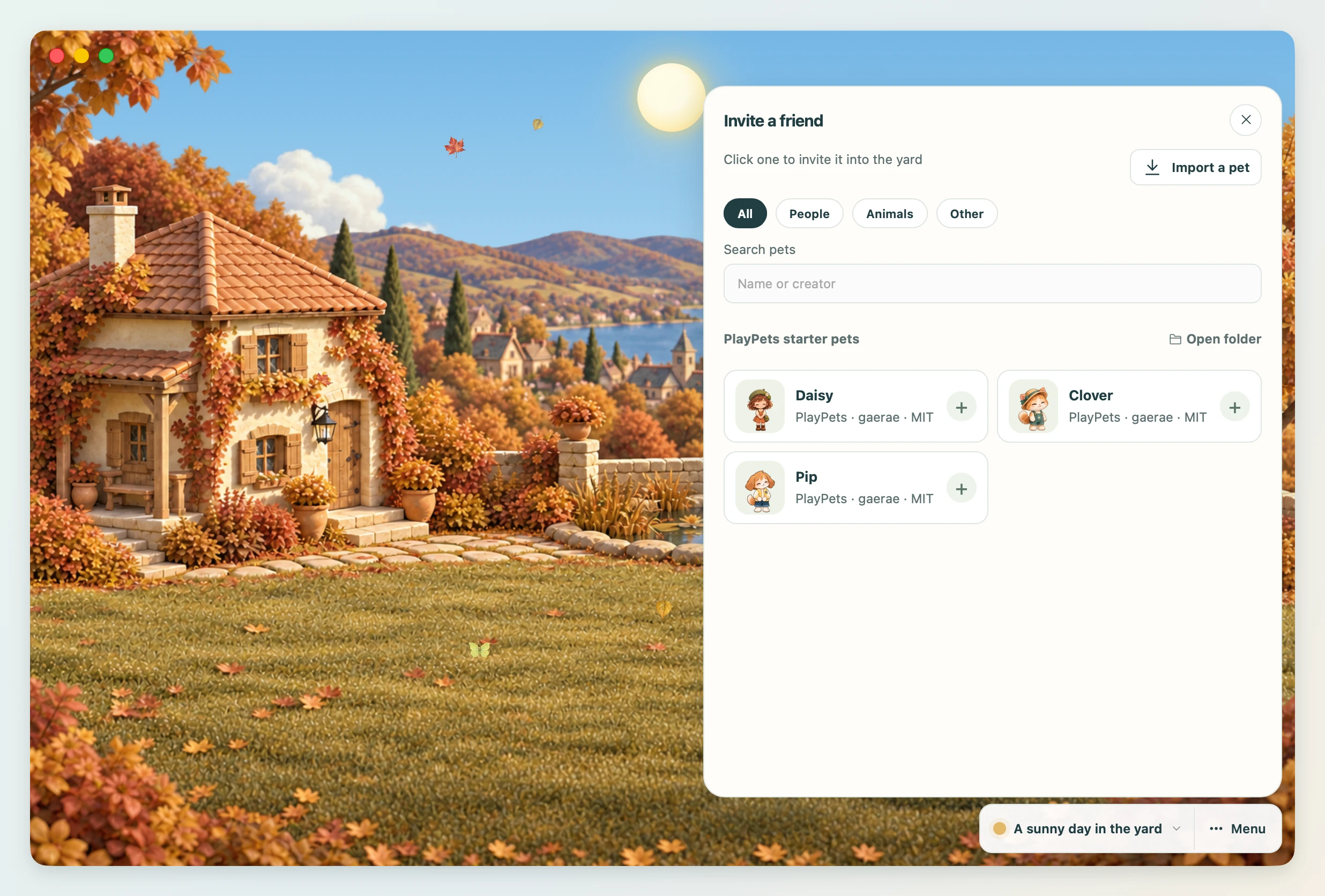
The Invite tab splits the cards into four groups, depending on where the pet file lives. A group with no pets is not shown.
| Group | Where the pets come from |
|---|---|
| PlayPets starter pets | Three pets bundled with the app, unpacked in builtin/ in the data folder |
| Codex pet folder | Codex pets in ~/.codex/pets. They show up automatically |
| Pets imported from an address | Community pets you got with Import a pet. Saved in pets/ in the data folder |
| Pets picked from this computer | Pets in a folder you picked yourself. Not copied; the app reads that folder as it is |
The first three groups have an Open folder button that opens the folder in Explorer or Finder. Pets picked from this computer show their folder name on each card. If there are no cards at all, start with Import a pet.
The Type chips above the shelf (All · People · Animals · Other) narrow it to human-shaped pets, handy when picking a partner or a mentor. They follow the pet file's kind.
The type filters work together with Search pets: enter a name or creator to narrow the same shelf. Show all clears both the search and the type filter.
Inviting a friend since 0.1.0
- Click a card (the
+on its right). A card for a friend already in the yard says "Invite one more". - The friend appears in the yard and waves. The panel switches to the Friend tab.
- Click the same pet again and it becomes "Invite one more". From the second friend on, a number is added after the name so you can tell them apart.
The yard holds up to 12 friends.
Friend settings since 0.1.0
In the Friend tab, open the ⋯ menu by the friend's name and choose Edit (the pencil) to change the name, personality, relationship, what it calls you, and size. The relationship chip beside the name opens it too.
- Name: shown on the name tag in the yard and in the chat. Up to 24 characters.
- Personality: your friend answers in this personality when you chat. At first the pet file's introduction is used as the personality; edit it or add to it and save to change that. Click Add the pet file's introduction to bring the original introduction back. Up to 400 characters. If no AI is connected, the personality is not used yet.
- Relationship: Friend, Partner, Dependable mentor or Playful younger sibling. It changes how your friend talks to you and asks about your day.
- What it calls you: your friend calls you this. Up to 24 characters. Both are explained in Chat with a friend.
- Size: five steps, Tiny, Small, Medium, Large and Huge. Slide it and the yard changes right away.
The friend ID is shown at the bottom of the window. You use it to point at a specific friend in Coding agent hooks.
To send a friend away from the yard, choose Send away from the ⋯ menu, or click Send away from the yard in Friend settings. Your conversation with them is deleted too, but the pet stays in the Invite tab, so you can invite them again any time.
Things to do in the yard since 0.1.0
Click a friend to pat it, or drag it to move it. The first friend you invite explains how to chat. Here is what you can do with a friend.
| Action | How |
|---|---|
| Pat | Click a friend once. They jump and show a heart |
| Move | Drag a friend and drop them. Their place in the yard is remembered |
| Chat | Click the friend's name tag: under the pointer it shows a speech mark. The Friend tab opens on that friend. In mini mode, the conversation stays in the small window. A double-click or right-click on the friend does the same |
| Put down a treat | Click Give a treat in Menu, then choose a spot in the yard. A picnic blanket with sandwiches, fruit and snacks appears, and friends gather around it. It clears after 15 seconds if not everyone arrives, or six seconds after the last friend eats |
A name tag sits under each friend. When you select a friend, the name tag changes to its selected look, and while a coding agent is working, the status is shown next to the name tag.
Left alone, friends slowly wander around the yard and talk to themselves. When it rains they say things like "Got an umbrella?", and at night they get sleepy. Time of day and weather are explained in The yard and games.
What next
- To talk with your friend, go to Chat with a friend.
- To put your friend out on the desktop, see Desktop mode.