
Coding agent hooks
While a coding agent such as Claude Code, Codex CLI, Gemini CLI or Cursor works, your friend reacts along with it. Copy and paste one piece of settings and you are done. Node.js is not needed.
A friend for each agent since 0.1.0
Each agent can report to a friend of your choice. In the Settings tab, pick one under Reacting friend on that tool's row, then press Copy settings again and paste. The copied settings name the friend (--pet), so Claude Code can report to Clover and Codex to Pip. With no choice, the first friend gets it; send the chosen friend away and it goes back to the first friend. Give each friend a different agent and the yard becomes a status board of who is doing what.
What you see in the yard since 0.1.0
A friend with an agent carries its name on the name tag (Clover · Claude Code). The chip under the friend's name in the Friend tab shows the agents, too. The small dot by a friend's head is the agent's state: working pulses orange, waiting is blue, done is green, and trouble is red; hover it for the name. Done and trouble fade after 30 minutes; working and waiting stay until the agent reports again. The pill in the Friend tab is the agent's state too: chat answers show in the log.
What happens since 0.1.0
The agent's steps become your friend's status. The status shows next to the name in the Friend tab and on the name tag in the yard, and it also floats as a speech bubble above the friend on the desktop.
| What the agent is doing | Your friend's status |
|---|---|
| Thinking, using a tool (for example "Using Bash") | Working |
| Waiting for confirmation or an answer | Waiting for you |
| Finished the task | Done |
| Hit an error | Something went wrong |
| Session ended | Resting |
Your friend remembers up to 8 recent activities. Ask "what were you doing?" in the chat and they tell you about them.
Copy and paste the settings since 0.1.0
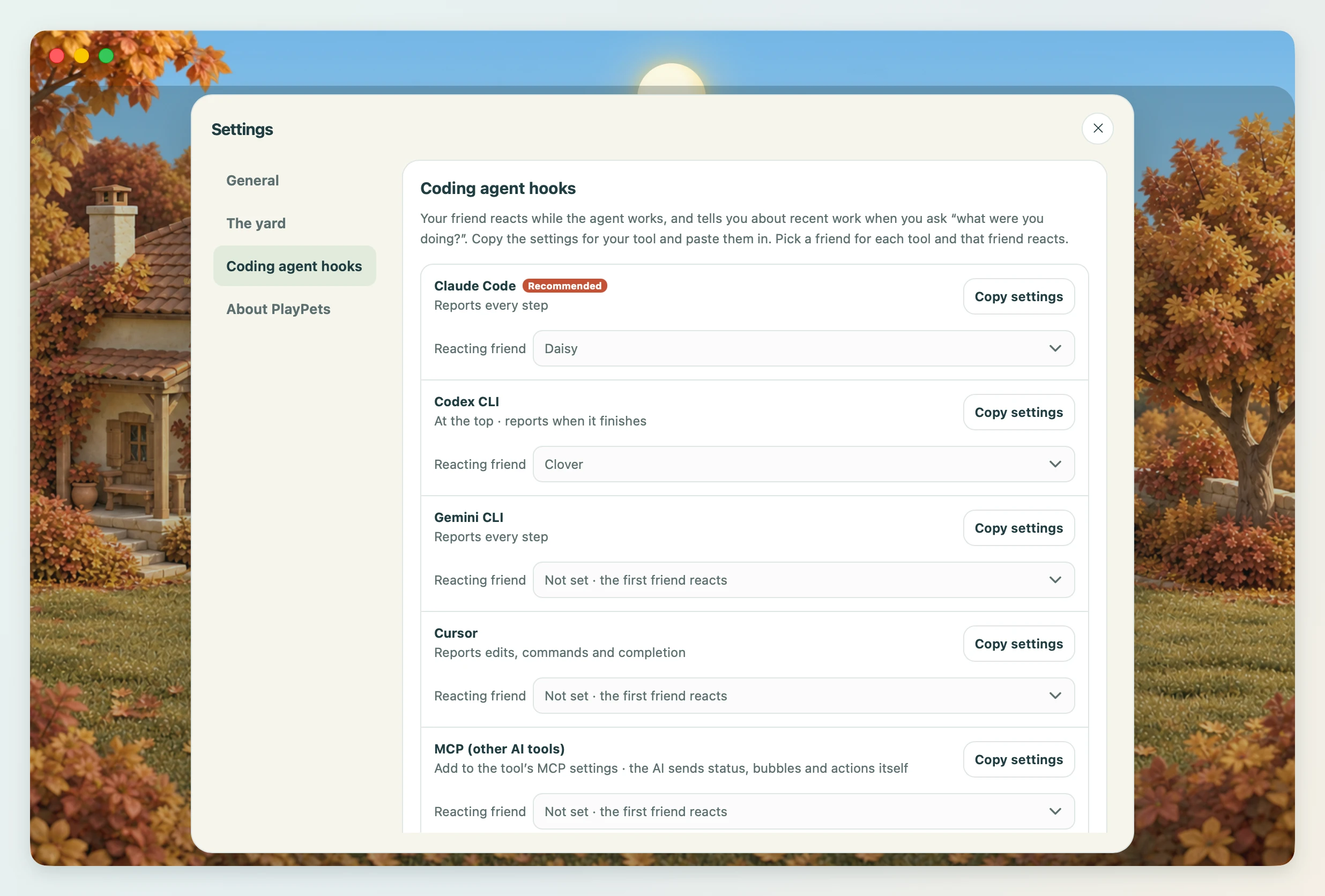
- Go to Coding agent hooks in the Settings tab.
- Click Copy settings next to the tool you use. A notice tells you which file to paste it into.
- Open that file, paste, and save. Restart the agent and it connects right away.
| Tool | Where to paste | How it works |
|---|---|---|
| Claude Code (recommended) | ~/.claude/settings.json | Reports every step through hooks |
| Codex CLI | At the top of ~/.codex/config.toml | Reports when a task finishes |
| Gemini CLI | ~/.gemini/settings.json | Reports every step through hooks |
| Cursor | ~/.cursor/hooks.json | Reports edits, commands and completion. Only observe-only hooks are used |
| Other MCP tools | The tool's MCP settings | The AI sends status and speech bubbles itself with the set_pet_state, say, react and list_pets tools |
The copied piece contains the path to the PlayPets executable. The app's executable is the hook command itself, so there is nothing else to install. If you move the app somewhere else, copy and paste the settings again.
If the file already has a hooks or mcpServers entry, merge the piece into that entry.
From the terminal since 0.1.0
You can call the same executable from the terminal to talk to your friend. Below, playpets is the app executable (on macOS, /Applications/PlayPets.app/Contents/MacOS/playpets).
playpets hook claude|gemini|cursor   # hook (JSON on stdin, always exits 0; prints {} for Gemini and Cursor)
playpets hook codex <json>      # Codex notify
playpets mcp                    # MCP server over stdio
playpets status <state> [message]   [--pet name|ID] [--bridge file]
playpets say <words>
playpets react <action>
playpets pets
playpets run -- <command>
Common examples:
| Command | What it does |
|---|---|
playpets pets | Lists the friends and their current status |
playpets say "Tests passed" | Shows a speech bubble without changing the status |
playpets status working "Building" | Changes the status. One of idle, working, waiting, done, error |
playpets react wave | Reacts once. One of wave, jump, pet |
playpets run -- npm test | "Working" while the command runs, then "Done" or "Something went wrong" |
Use --pet name or --pet friendID to point at a specific friend. Without it, the first friend gets it. The friend ID is at the bottom of the Friend settings window.
Security since 0.1.0
- The hooks stay on this computer. The app opens a random port on
127.0.0.1and checks a random token on every request. The port and token are inbridge.jsonin the data folder and change every time the app starts. - Coding-agent hooks omit user prompts and tool inputs. The local bridge uses
127.0.0.1and token authentication. Short completion or notification reports, including a clipped agent answer, may contain work details and can be included in a friend’s conversation with your chosen AI provider. Review what you send through terminal or MCP messages; use a downloaded local model when those details need to stay on this computer. - The hooks never block the agent's work. They finish quietly within 3 seconds, and the agent keeps running even when the app is closed.
- This is separate from the AI connection used for chatting. Setting up the hooks alone does not let you chat with your friend.
The detailed design is in the developer docs under Coding agent integration.
Notes for Windows
- If you installed the trial MSIX package built locally, the executable is under
WindowsAppsand cannot be called by path. In that case the copied settings point to the execution alias%LOCALAPPDATA%\Microsoft\WindowsApps\playpets.exe. claudeandcodexinstalled with npm must be in%APPDATA%\npmfor the app to find them. If you installed them somewhere else, automatic detection may not work.