
Chat with a friend
To chat with a friend, you need to connect one AI. Inviting and playing work without one; the chat then says "Ready to play! Connect an AI whenever you want to chat." with a Connect an AI button.
Kinds of AI connections since 0.1.0
| Kind | How it chats | Cost and data |
|---|---|---|
| Claude Code | Uses the Claude Code signed in on this computer | Subscription sign-in uses your plan allowance; API-key sign-in uses API billing |
| Codex CLI | Uses the Codex CLI signed in on this computer | ChatGPT sign-in uses your plan allowance; API-key sign-in uses API billing |
| Ollama | Uses a model through Ollama at http://127.0.0.1:11434 | Local models keep conversations on this computer without hosted inference fees; cloud models use their service's terms |
| OpenAI API | Connects to OpenAI with an API key | Conversations are sent to OpenAI, and API fees may apply |
| OpenAI-compatible server | You enter the server address and API key yourself | Conversations are sent to that server, and fees may apply |
The connection window shows each kind as a card that says what it needs. A kind found on this computer (Claude Code, Codex CLI or Ollama) is marked Installed and picked for you; with none found, nothing is picked, and the fields appear once you pick a card.
API keys are kept only in this computer's secure storage (macOS Keychain, Windows Credential Manager, Linux Secret Service). They never go into the settings file.
With subscription sign-in, CLI chat has no separate API bill, but it consumes the same usage allowance as your other CLI work. Plan limits apply, and optional purchased credits can cost extra. For offline chat, choose a downloaded local Ollama model; using an Ollama cloud model still sends the conversation to its service.
Making a connection since 0.1.0
- Open the Friend tab and pick the friend to chat with. If you have several friends, the name turns into a list.
- Click the Connect an AI button in the chat, or choose + Connect a new AI… from the AI list at the bottom left of the message box.
- Pick a card under Kind of AI and, depending on the kind, enter the server address or API key.
- Pick or type the Model name. Click the field and the list of models that AI offers appears (for a kind that needs a key or an address, once you have entered it). For Claude Code and Codex CLI, leave it empty to use the default model; a short name like
sonnetalways gets the latest version. Ollama and API connections need a model name. - Click Save and connect. If other friends still have no AI, the "Also use this AI for other friends without one" switch is on, so everyone can talk at once.
You can also write to a friend before it has an AI: sending opens the connection window, and once it is connected the message goes. On a first start with Claude Code or Codex CLI on this computer, the yard's starting card names it and Connect now attaches it to every friend in one step, with no key. With two or more friends, they start talking among themselves right after.
Once you have made a connection, other friends can use it too. Pick a different connection from each friend's AI list and each friend chats with a different AI. To edit or delete a connection, choose AI connection settings from the ⋯ menu by the friend's name. Deleting a connection deletes its saved key too, and friends who were chatting through it play without an AI.
Chatting since 0.1.0
- Type in the field at the bottom and press Enter. Shift+Enter makes a new line.
- When the friend has an AI, a conversation not yet started offers a few first lines (such as "What did you do today?"). Pick one to send it with one click.
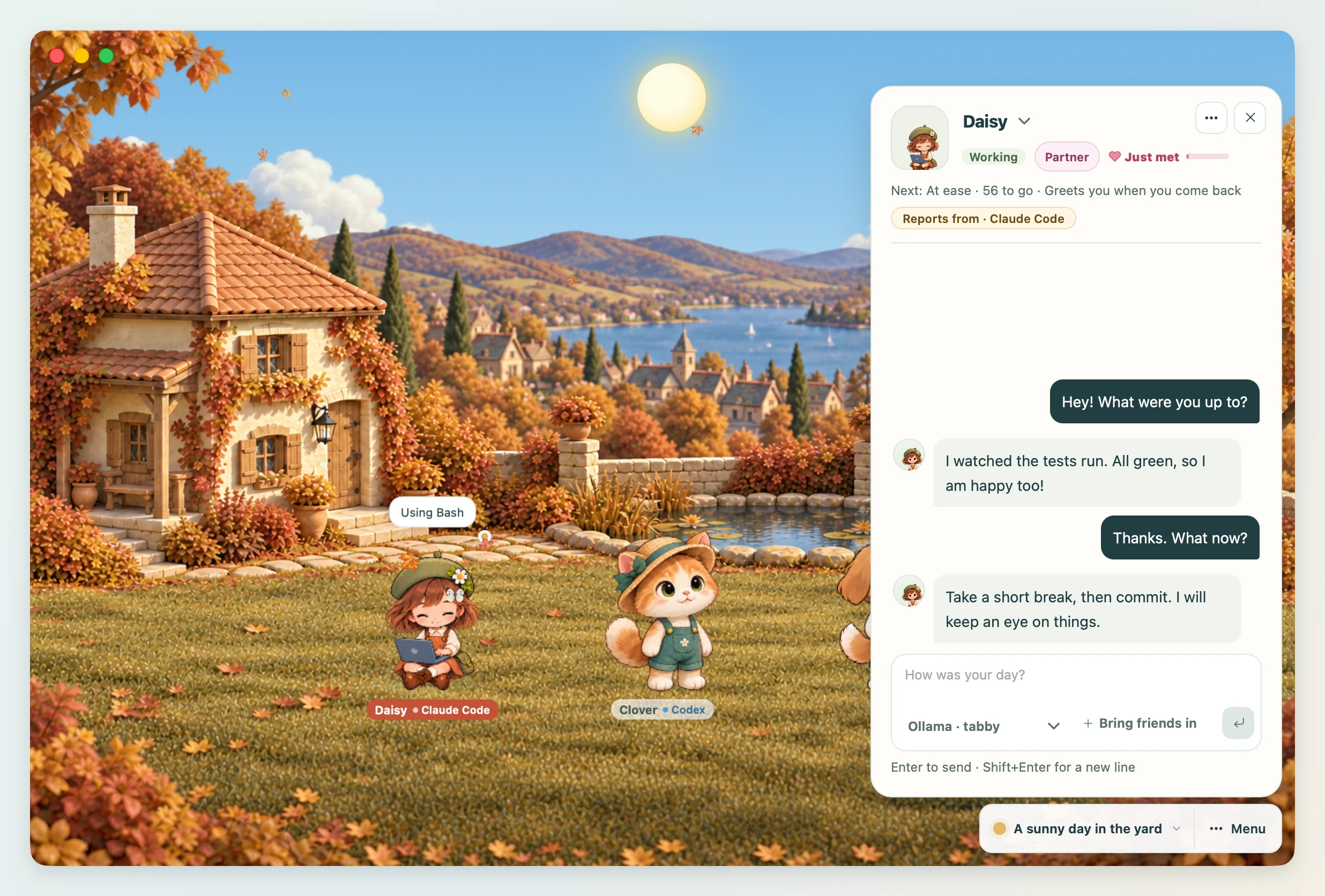
- Each friend's turn in the conversation opens with its picture, as in a messenger.
- While you wait for an answer, a "Thinking" bubble appears, and the ■ button stops it.
- The answer also floats as a speech bubble above the friend in the yard.
- Choose Clear chat from the ⋯ menu by the friend's name to delete the whole conversation with this friend. The name and personality stay.
The chat history lives only in memory. It is gone when you quit the app, and it is not saved to a file.
Setting a personality since 0.1.0
The personality is the tone and attitude your friend answers with. There are two ways to set it.
- Write it in Friend settings. Something like "Acts tough but melts at a compliment. Keeps answers short." is enough. Once saved, it applies from the next chat.
- Say it in the chat. Say something like "be more casual from now on" and your friend saves it as the personality. A "Saved your friend's personality" notice appears, and you can see it in Friend settings.
Setting a relationship since 0.1.0
Relationship in Friend settings says what this friend is to you. It is a row of relationship cards, Friend (the default), Partner, Dependable mentor and Playful younger sibling, each saying the voice it brings. The relationship chip beside the friend's name in the Friend tab opens these cards, so you can change it in one click. It shapes how the friend talks to you, what it calls you and how it asks about your day, and friends chatting together know each other's relationship. A partner, a mentor and a younger sibling speak in voices of their own even without an AI: when they welcome you back, grow closer or say what you mean to them. Write "honey" or your name under What it calls you and it will (the example in the box follows the relationship). Many Codex pets are human-shaped, which suits a partner or a mentor well. What is said within the relationship follows the policy of the AI you connected, not the app.
Chatting together since 0.1.0
When two or more friends have an AI connected, Bring friends in appears at the bottom of the message box.
- Click it and click the friends you want to chat with. You can pick up to 3.
- Send a message and the current friend answers first, then the friends you picked answer one after another. Each speaks with their own AI and personality.
- To let the friends carry on without a new message, press Let them chat in Menu. The friends with an AI talk for a round about the time and the weather, and it shows as speech bubbles in the yard.
The small chip under the friend's name shows which coding agents report to this friend (Reports from · Claude Code).
In the yard you can see the friends talking to each other in speech bubbles.
"What were you doing?" since 0.1.0
With Coding agent hooks set up, your friend remembers what the agent did recently. Ask "what were you doing?" in the chat and they tell you about that work in their own words. The hooks work separately from the AI connection used for chatting.