
Desktop mode
You can send your friends out of the yard window to live on the desktop. They stay visible while you work in other apps.
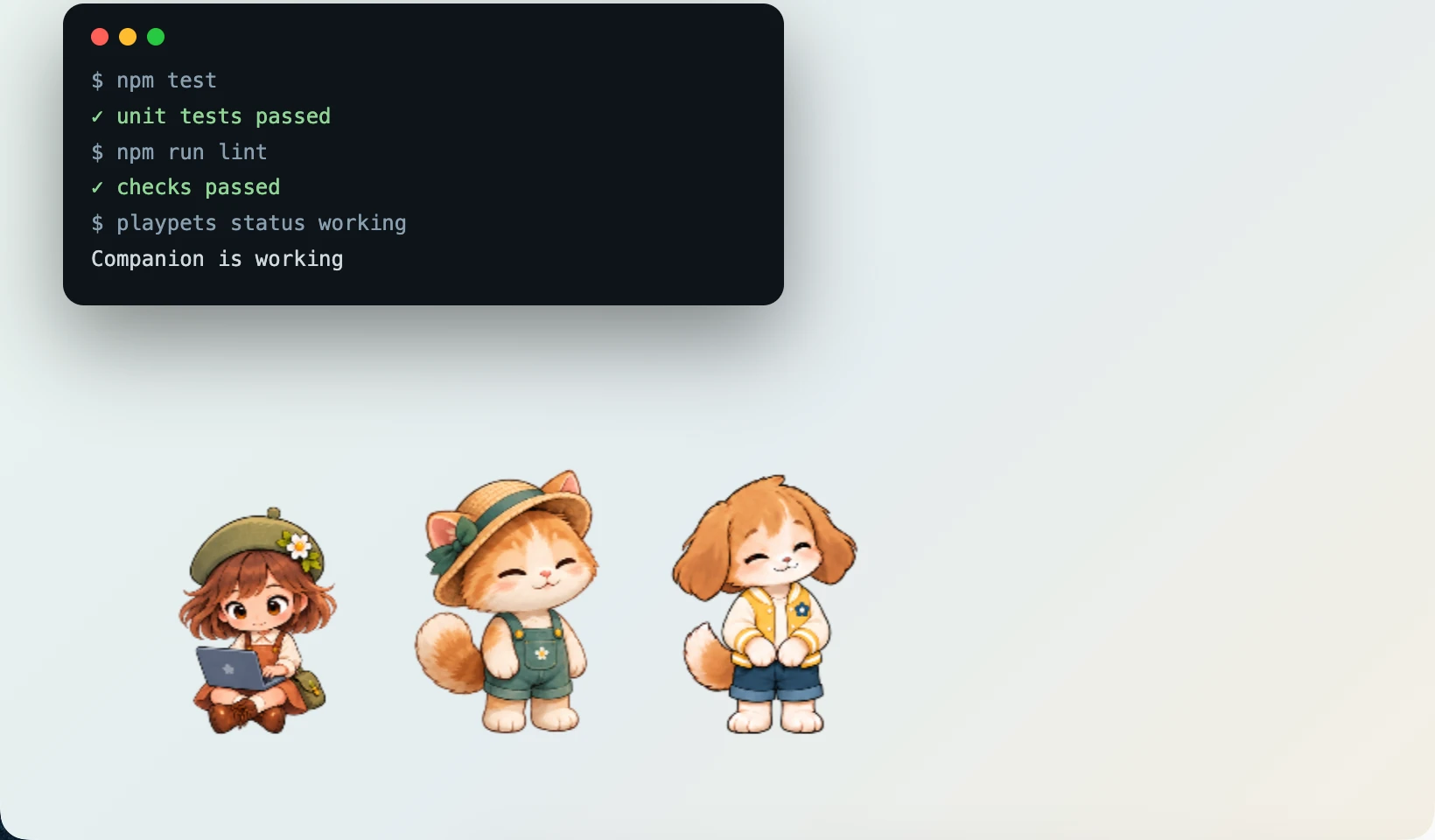
Turning it on and off since 0.1.0
Open Menu → Show on desktop and turn on the switch. Stroll on desktop stays directly below it and becomes available when desktop mode is on. Both switches show their current state, and the menu stays open while you adjust them. Turn off Show on desktop to bring your friends back. With no friends, desktop mode is unavailable.
The tray icon's menu has the same items, so you can turn it on and off without opening the yard window.
Things to do on the desktop since 0.1.0
| Action | How |
|---|---|
| Pat | Left-click a friend once |
| Move | Drag a friend and drop them. You can move them to another monitor too |
| Chat | Point at a friend and its name shows below it with a speech mark. Click the name and the yard window opens on that friend's chat. A right-click does the same |
| Eye contact | Move the mouse over a resting friend's face and their eyes follow it. Only v2 pets with 16-direction gaze artwork can do this |
A double-click does nothing, so a window does not open by accident while you are moving a friend. The first time desktop mode turns on, a notice says how to chat.
Names stay hidden until you point at a friend, so friends blend in with your desk. The coding agent's status and whatever the friend says float in a speech bubble above their head; a long line ends with "…" after three lines.
Friends on every monitor since 0.1.0
With several monitors, a friend can be on any of them. Drag a friend to another monitor and they stay there. Even when the monitors have different scaling, the mouse position is matched to that monitor's scale.
Stroll around the desktop since 0.1.0
Turn on the Stroll around the desktop toggle and the friends slowly wander around the desktop. They turn to face the way they walk, and stop to rest now and then. Turn it off and they stay where you left them. They do not wander while you are dragging them.
On top of other apps' full screen since 0.1.0
On macOS, friends float on top even when another app is in full screen. The desktop window is turned into a special panel so it shows up in full-screen spaces too. On Windows and Linux, they float on top of normal windows. A Wayland session on Linux gives apps no way to stay on top or to know where the mouse is, so there friends can end up behind other windows and do not follow the mouse; an X11 session has it all.
Still there after you close the window since 0.1.0
The yard window's close button does not quit the app; it only hides the window. Hover over the close button and it says "Close (reopen from the tray)". The friends on the desktop stay, and the agent hooks keep running.
- On macOS, closing the window also removes the Dock icon, so that no icon that does not respond to clicks is left in the Dock. Open the yard again and the Dock icon comes back.
- On Windows and Linux, it disappears from the taskbar and stays only in the tray.
Opening it again
- Click the tray icon in the menu bar (macOS) or taskbar (Windows, Linux) and choose Open the yard.
- Clicking a friend's name on the desktop (or right-clicking the friend) also opens the yard window.
Quitting for good
To really quit the app, choose Quit in the tray menu or click Quit the app in Menu → Settings → About PlayPets. Conversations are not saved, and friends on the desktop go too. Each friend's name, personality and size, and whether desktop mode was on, are remembered, so everything is as you left it the next time you open the app.